Install R and RStudio
1. Install R
RStudio requires R to be installed. Here's how to install R:
For Windows:
- Go to the R for Windows download page
- Click on the Download R for Windows link on the top
- Download the
.exe file, then open the file to begin installation
- Follow the installation prompts to complete the setup.
For macOS:
- Go to the R for macOS download page.
- Choose the Right R Version: Apple Silicon Macs or Intel Macs
- Download the
.pkg file, then open the file to begin installation.
- Follow the installation prompts to complete the setup.
For Linux (Ubuntu):
- Open the terminal and update the apt package lists
- Install the R base package and its dependencies
        sudo apt update
        sudo apt install r-base r-base-dev -y
This will install the latest version of R.
2. Install RStudio
After installing R, you can install RStudio, an IDE that makes it easier to work with R.
- Go to the RStudio download page.
- Choose the version for your operating system (Windows, macOS, or Linux).
- Download the installer and open it to begin the installation.
- Follow the installation prompts to complete the setup.
3. Launch RStudio
Once both R and RStudio are installed, open RStudio. RStudio can detect your R installation and allow you to start coding in R right away.
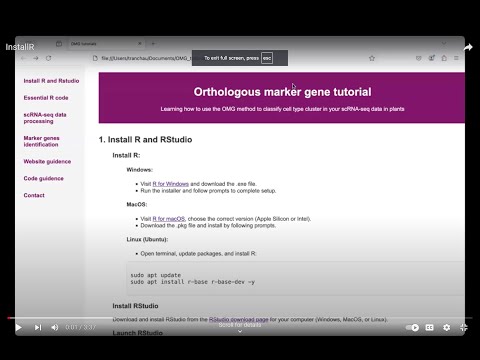
4. Tutorial video